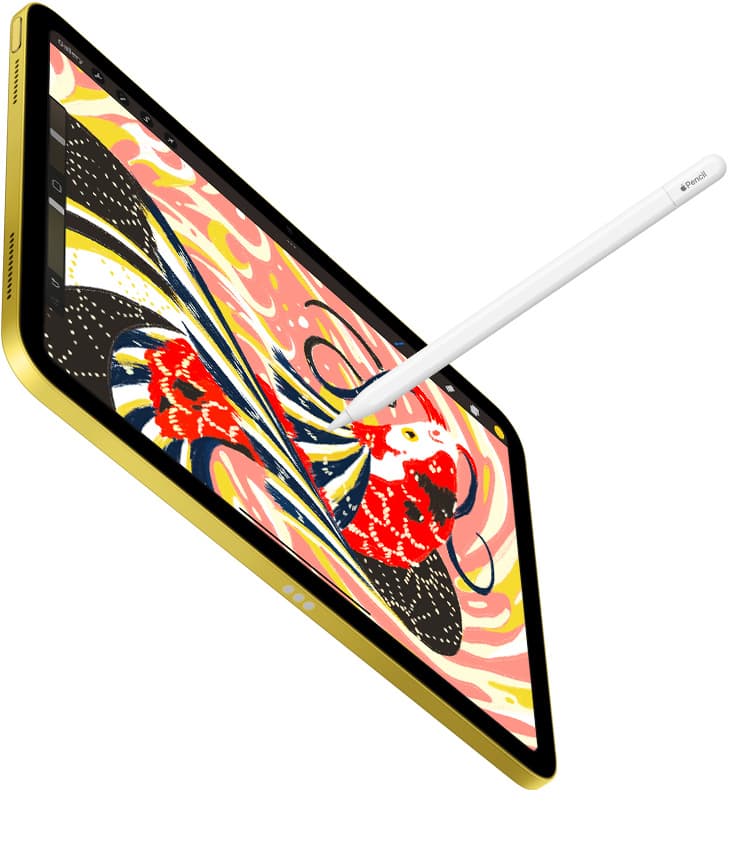
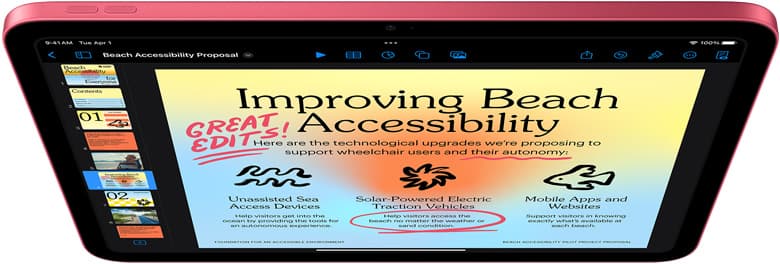
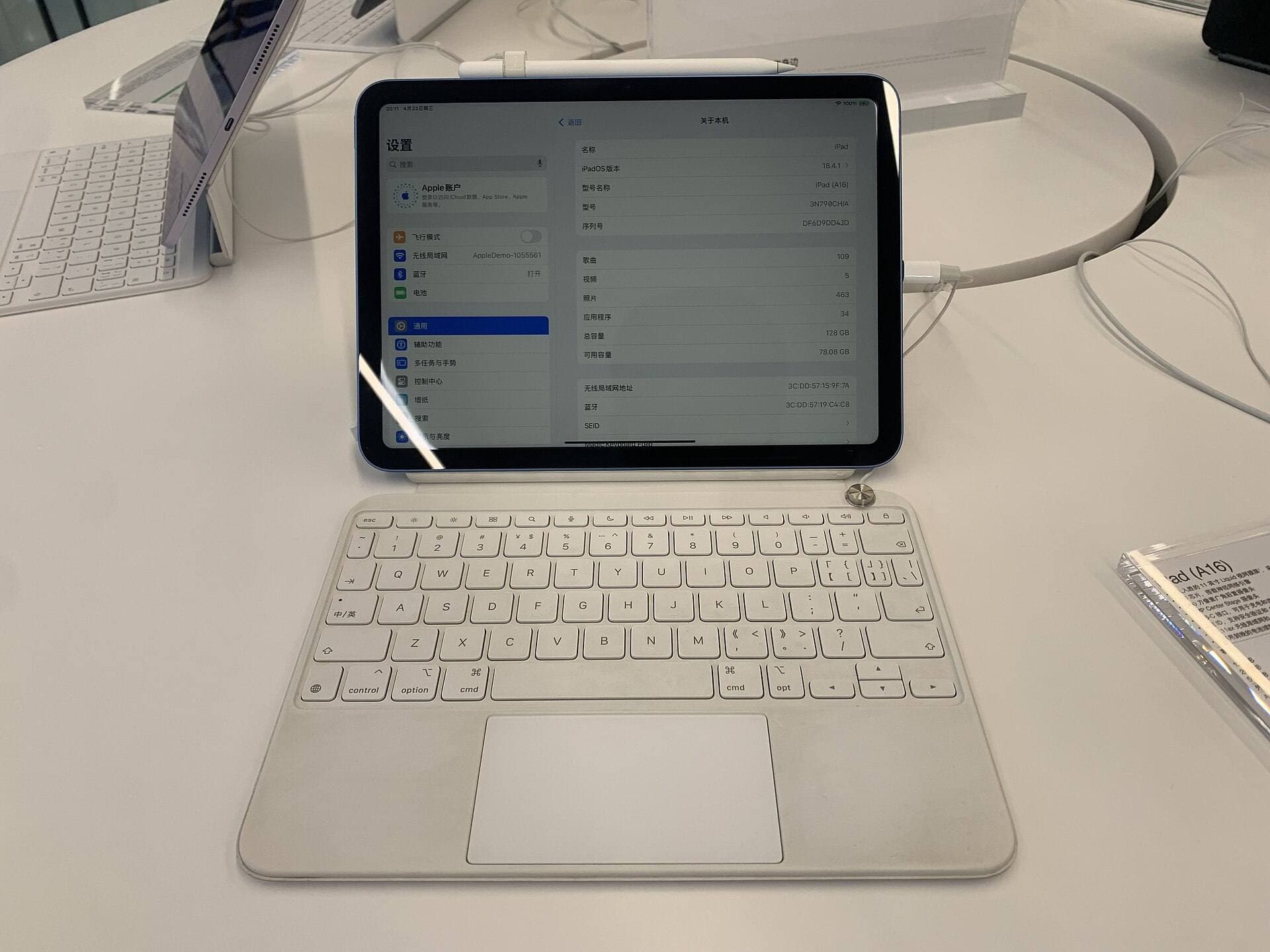
Buy an iPad Air (M4) if you want a complete digital sketchbook that handles layers, rich color, multiple brush types, and full raster workflows [1], [4]. Choose a reMarkable only if your visual work consists solely of monochrome line sketches, loose ideation, and handwritten notes where you intentionally want zero notifications and an e-ink reading surface [1]. For most illustrators, concept artists, and visual thinkers, the reMarkable is too limited for ongoing artwork. An iPad running dedicated drawing software provides modern stylus capabilities like pressure, tilt, and hover, giving you a full creative production pipeline rather than just a monochrome scratchpad [2], [4].
The core difference between e-ink paper and digital displays
When you sketch on a reMarkable, you are interacting with a black-and-white e-ink display designed to recreate pencil on paper. It offers a textured feel and eliminates background app alerts, but its hardware is designed around reading and basic note-taking rather than full graphics processing [1]. You do not get a colored canvas, customizable layer blend modes, or dynamic digital rendering engines [4].
An iPad takes the opposite approach by using a high-resolution, full-color screen paired with custom Apple silicon like the M4, M5, or A17 Pro chips [1]. You can load professional apps like Procreate that give you complete color palettes, custom canvas dimensions, and advanced layer stacks [4], [5]. If you want your sketches to evolve into finished paintings, vector files, or client deliverables, the iPad gives you that path directly on the device [1], [4].
Stylus capabilities and drawing mechanics
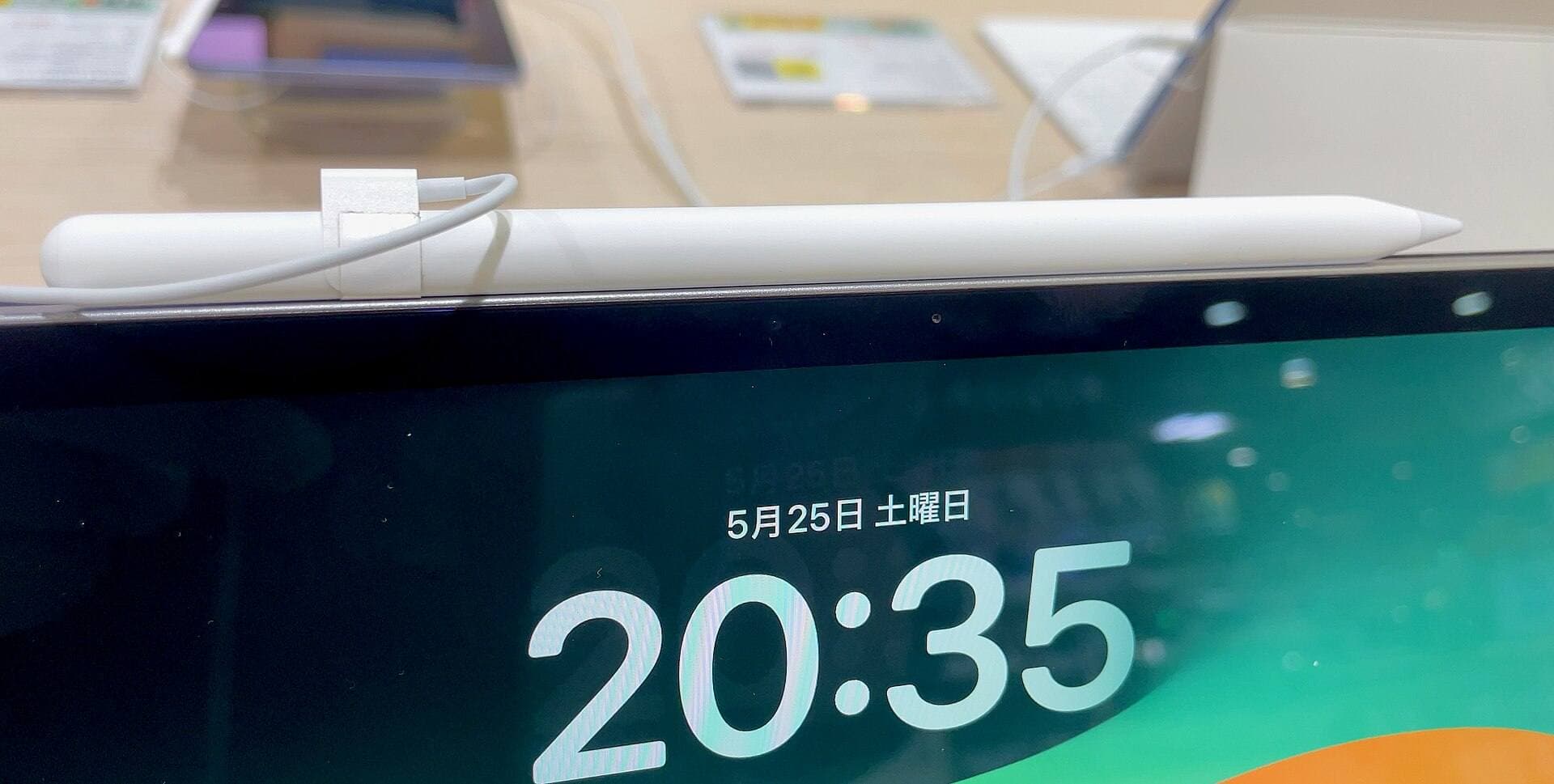
The drawing experience on each platform depends heavily on stylus hardware. On modern iPads, tools like Apple Pencil Pro and Apple Pencil (2nd generation) include pressure sensitivity, tilt detection, and low latency tracking built directly into iPadOS [2], [3]. Apple Pencil Pro also introduces a squeeze gesture to bring up quick palettes, barrel roll for brush orientation using an internal gyroscope, and haptic feedback to confirm tool changes [2], [6].
In apps like Procreate, Apple Pencil gestures let you adjust brush parameters or activate shortcuts without touching onscreen menus [6], [7]. In addition, Apple Pencil hover allows compatible iPad models to show an exact brush footprint preview before your nib touches the glass surface [2], [6]. A reMarkable stylus provides basic pressure for simple line weights, but it lacks squeeze controls, barrel roll orientation, haptic confirmations, and dynamic brush hover features found across Apple's hardware lineup [2].
Layers, canvas limits, and creative software
The software environment defines what you can actually accomplish with your sketches. On a reMarkable, you have basic pencil, marker, and highlighter tools with a handful of fixed layers, but you cannot manipulate complex digital assets or export layered art files to creative suites [1], [4]. The system is built for linear thinking rather than production illustration [1].
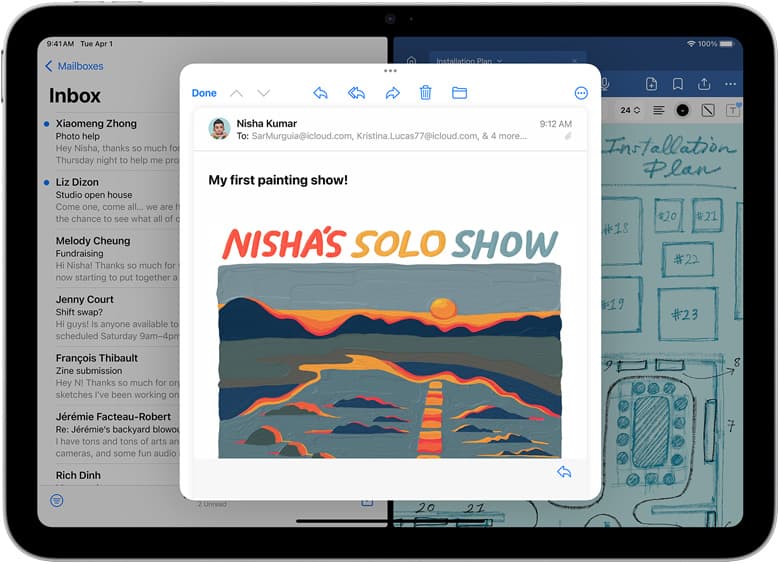
On an iPad, software like Procreate offers deep brush customization, layer groups, masks, and flexible export formats [4], [5]. Procreate calculates your available layer limits based on the total RAM of your iPad and your chosen canvas resolution [4]. For instance, choosing an iPad Air (M4) or an iPad Pro (M5) provides substantial memory headroom, allowing you to build large canvases with dozens of working layers for detailed ink and paint passes [1], [4]. If you like thumbnailing ideas in color or working with multiple reference images side by side, iPadOS supports that workflow through Split View and floating windows [1], [6].
Portability and sketching on the go
Artists who carry sketchbooks everywhere value compact sizing and battery reliability. The reMarkable offers a lightweight body with exceptional battery longevity because e-ink screens draw very little power during static viewing [1]. For pure note-taking and casual outdoor line drawing, that simplicity is appealing [1].
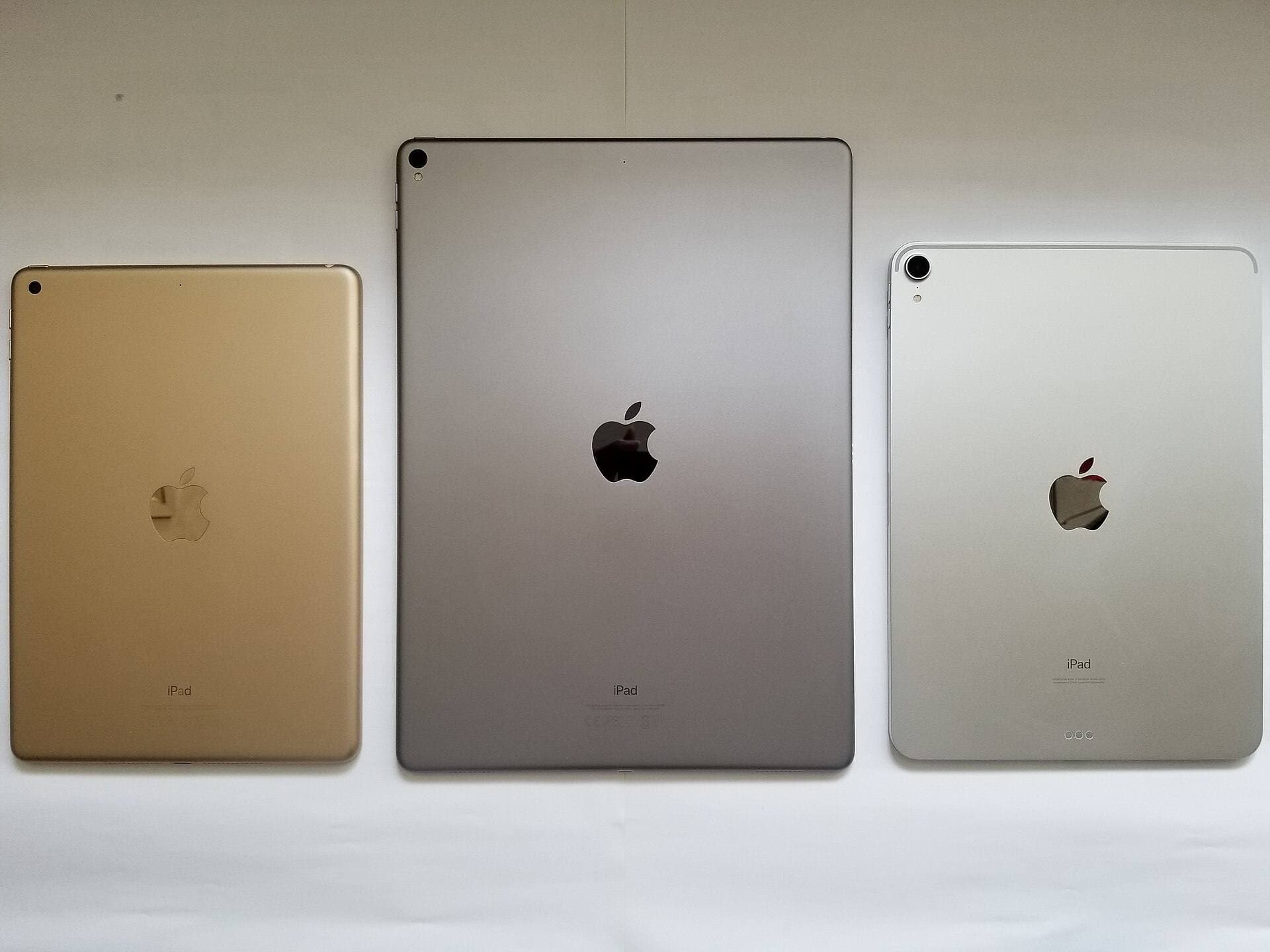
However, the iPad lineup gives you multiple form factors to match how you travel [1]. The iPad mini (A17 Pro) features an 8.3-inch Liquid Retina display, making it small enough to slip into a coat pocket or small sling while still supporting Apple Pencil Pro features like squeeze and barrel roll [1], [2]. If you want a larger canvas that still fits in an everyday bag, the 11-inch or 13-inch iPad Air (M4) provides a generous drawing area without requiring the investment of a top-tier Pro model [1]. An iPad also charges quickly over standard USB-C cables, allowing you to use the same power bank or wall charger you carry for your phone [1].
Choosing the right iPad model for your sketch kit
If you decide an iPad fits your sketching needs better than an e-ink notepad, you have several distinct hardware paths depending on your priorities [1].
For most artists, the iPad Air (M4) hits the sweet spot [1]. It pairs with Apple Pencil Pro, giving you squeeze tool switching, haptic feedback, barrel roll, and Pencil hover without forcing you into Pro pricing tiers [1], [2]. It runs on Apple's 60Hz display technology, but its desktop-class processor provides strong canvas headroom in Procreate [1], [4].
If you want the most responsive drawing feel possible, the iPad Pro (M5) includes Apple's ProMotion technology, which runs up to 120Hz for fluid line tracking [1]. It is the premier choice for artists who work long daily sessions and want the highest screen brightness and fastest display refresh [1].
If portability is your main requirement, the iPad mini (A17 Pro) delivers Apple Pencil Pro support on a compact canvas [1], [2]. While its smaller physical dimensions leave less room for hand resting during wide strokes, it works wonderfully as an everyday pocket sketchbook [1].
Finally, the standard iPad (A16) is the budget-friendly baseline [1]. It pairs with Apple Pencil (USB-C), making it a capable tool for basic sketching and notes, though it lacks pressure sensitivity and advanced gestures like squeeze or barrel roll [1], [2].
Bottom line
The reMarkable excels as an e-ink replacement for paper notebooks, but it is too restrictive for artists who need color, dynamic brush libraries, and layered composition tools [1], [4]. If your goal is true digital sketching that can grow into finished production art, the iPad Air (M4) paired with Apple Pencil Pro is the best overall choice [1], [2]. It gives you professional stylus tools, deep app compatibility, and ample canvas headroom at a sensible price point [1], [4].
Sources
[1] https://www.apple.com/ipad/compare/ [2] https://www.apple.com/apple-pencil/ [3] https://support.apple.com/en-us/108937 [4] https://help.procreate.com/articles/zlexav-ipad-compatibility [5] https://apps.apple.com/us/app/procreate/id425073498 [6] https://support.apple.com/guide/ipad/draw-with-apple-pencil-ipadc55b6c7a/ipados [7] https://help.procreate.com/procreate/handbook/5.2/interface-gestures/pencil
Recommended gear
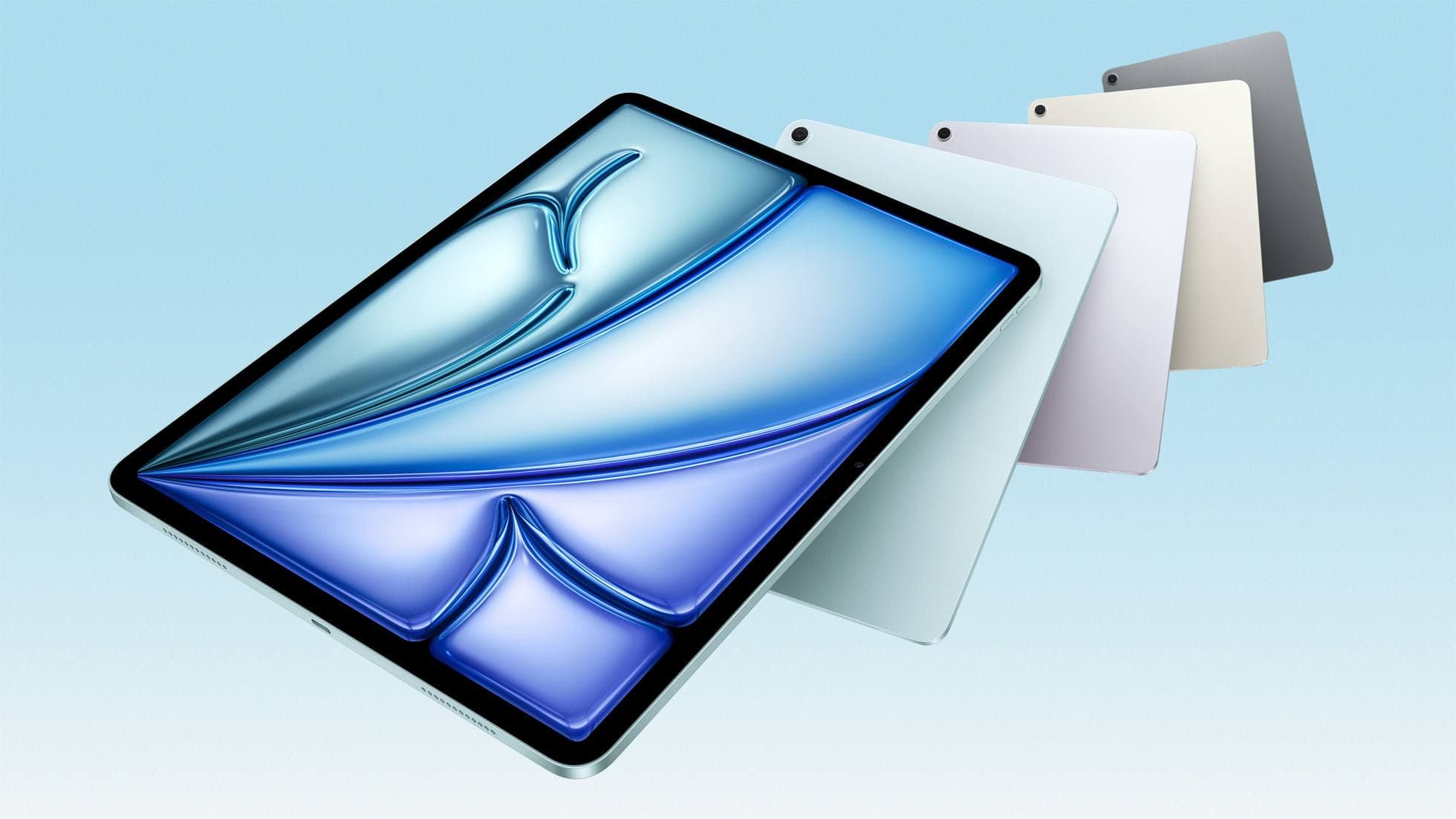
iPad Air (M4)
apple.comThe clean current Air recommendation for most serious hobby artists. Stronger buy logic than old-stock M3 when pricing is close.
Pro: Best current balance of price, headroom, and Pencil support
Con: Still 60Hz
Current Air lineup. Choose size, storage, and keyboard path before checkout.
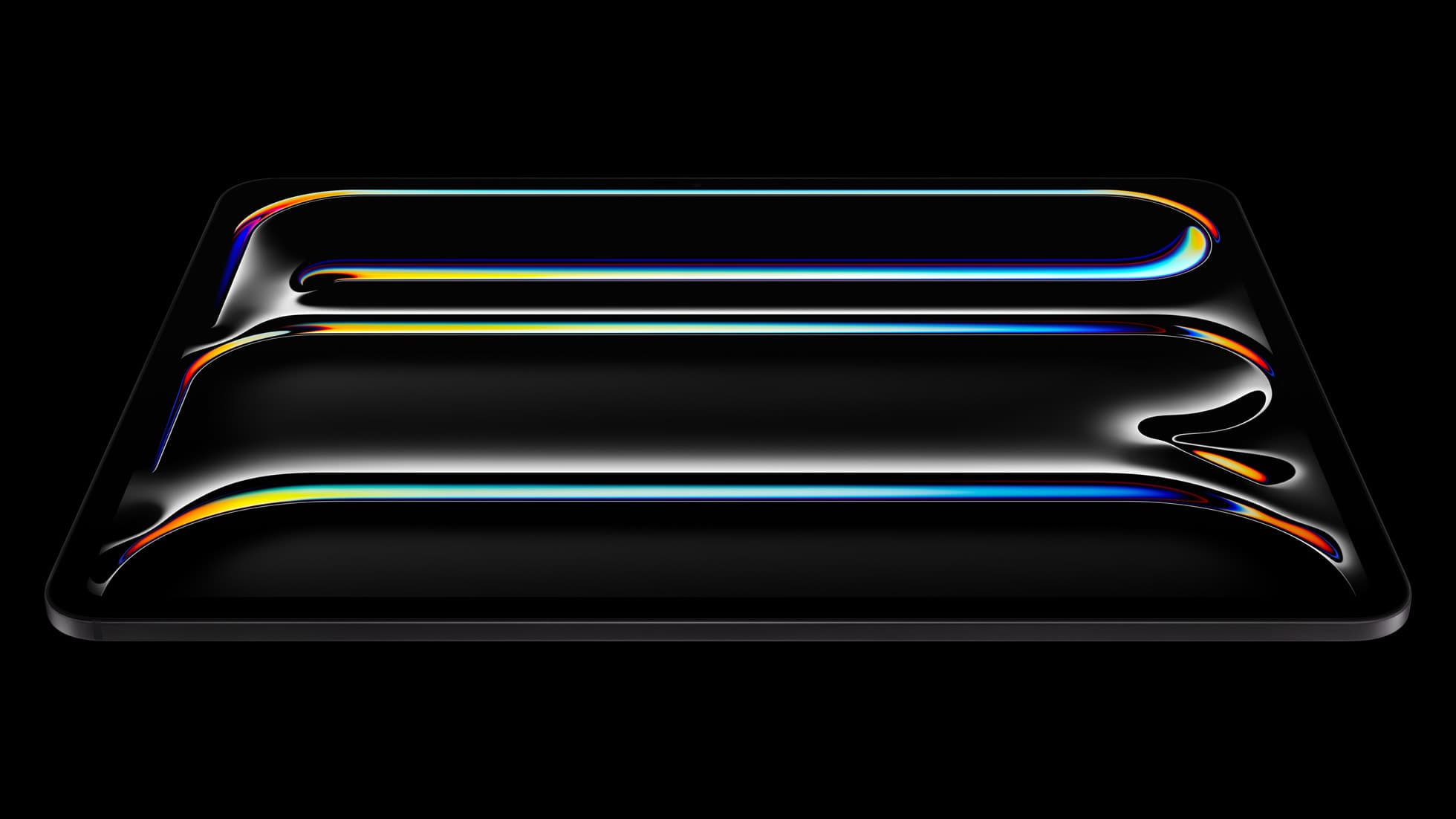
iPad Pro (M5)
amazon.comThe best iPad for drawing feel and premium workflow comfort, but many buyers still overpay for it.
Pro: Best iPad display and ProMotion feel
Con: Highest price in the lineup
Search opens with iPad Pro terms. Check year, chip, and screen size.
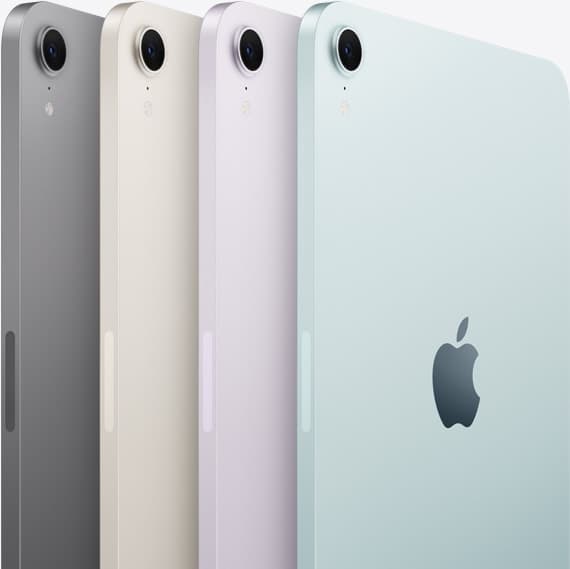
iPad mini (A17 Pro)
amazon.comThe most portable real iPad for drawing. It wins on mobility and loses on workspace.
Pro: Most portable drawing iPad
Con: Small canvas for detailed work
Search opens with iPad mini A17 Pro terms. Verify model number before buying.
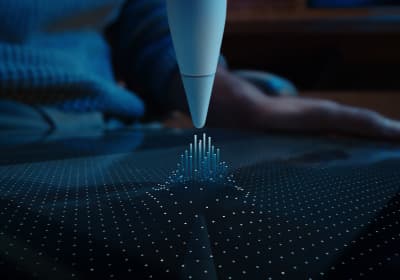
Apple Pencil Pro
amazon.comThe best Apple stylus for serious digital art workflows. Expensive, but the control upgrades are real.
Pro: Best brush-control and hover workflow
Con: Highest price in the lineup
Works only with newer iPad models. Check compatibility.
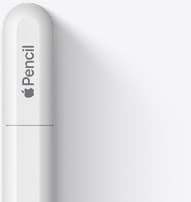
Apple Pencil (USB-C)
amazon.comA practical low-cost Apple stylus with broad compatibility, but limited for advanced art control.
Pro: Lowest official Apple Pencil cost
Con: No pressure sensitivity for brush work
Compatible with many recent iPads. No pressure support.
Related buying picks
More in this collectionBuyer guide
Is the iPad A16 good for Procreate?
The iPad A16 runs Procreate well for beginners and casual artists, though stylus support and layer limits remain key trade-offs.
Buyer guide
Best iPad for kids art: what parents should buy
Buy the base iPad for young artists, choose the iPad Air for serious students needing pressure sensitivity, and skip the expensive iPad Pro.
Comparison
iPad vs Samsung tablet for drawing: which setup to choose
Choose an iPad if your art workflow relies on Procreate and Apple Pencil tools, and pick the iPad Air for the best balance of features.
Buyer guide
The best iPad for urban sketching and field drawing
Choose between the ultra-portable iPad mini and the sketchbook-sized iPad Air for drawing on the go.