





Keep your existing stylus and test system-level input before spending money on new hardware [1]. When an Apple Pencil stops writing in Goodnotes, the breakdown is usually an unseated Bluetooth pairing, a depleted charge, or a software setting rather than a broken stylus [2], [3]. If your Pencil writes in native iPadOS tools like Markup or Notes, your hardware is fine, and buying a replacement won't fix the issue [3]. Only buy a replacement Apple Pencil if the device fails to pair, charge, or respond across all iPadOS applications [1], [3]. iPad owners with compatible magnetic-charging iPads should buy the Apple Pencil (2nd generation) for pressure support, buy the Apple Pencil (USB-C) for basic note-taking at a lower cost, or buy the Apple Pencil Pro only if they own a supported newer iPad [1], [2].
Isolate hardware pairing before replacing your stylus
Before adjusting software options inside Goodnotes, you must confirm that iPadOS detects the stylus [1]. Attach your stylus to the magnetic connector on your iPad or plug it into the USB-C port, depending on which model you own [1], [2]. If the battery banner doesn't appear at the top of your screen, your accessory may be completely out of power or unpaired from the operating system [1], [3].
Open the native Notes application or open a screenshot to enter Markup [3]. Try drawing a stroke with the pen tip. If the stroke registers cleanly in Markup, the Bluetooth connection, digitizer screen, and physical tip are functioning properly [3]. This immediate check prevents you from buying a brand new Apple Pencil when a simple application restart or tool switch inside Goodnotes is all that is required [2], [3].
If the pencil fails to write in native iPadOS Markup, unscrew the tip slightly and tighten it firmly back down [3]. A loose tip breaks the physical connection with the internal sensor, preventing strokes from appearing on the canvas [3]. If the tip is secured but strokes still don't register anywhere in iPadOS, forget the device in your Bluetooth settings, reconnect the stylus to its charging source, and pair it again [1].
Check stylus compatibility across iPad models
Hardware incompatibility is a common reason an Apple Pencil won't work after an iPad upgrade [1]. Apple sells several distinct models, and each works only with specific iPad generations [1], [2]. An Apple Pencil designed for older hardware won't pair or write on incompatible newer iPads, and newer styluses won't pair with older tablets [1].
Apple Pencil (2nd generation) pairs and charges magnetically on compatible iPad Air, iPad mini, and previous iPad Pro chassis [1], [2]. It supports pressure sensitivity, tilt detection, and double-tap tool switching [2], [3]. However, it isn't compatible with the newest Pro-only iPads or basic baseline iPads [1]. Buying a replacement Apple Pencil (2nd generation) makes sense only if you already own a confirmed compatible iPad model and your original unit has suffered physical hardware damage [1].
Apple Pencil (USB-C) works across a wide range of USB-C equipped iPads [1]. It includes tilt sensitivity and magnetic attachment for storage, but it pairs and charges through a sliding USB-C port cap rather than magnetic inductive charging [1], [2]. It lacks pressure sensitivity entirely [2]. If you write notes in Goodnotes and your stylus writes but never changes stroke thickness based on downward force, you may be using an Apple Pencil (USB-C) rather than a broken pressure-sensitive model [2].
Apple Pencil Pro works only with newer iPad models [1]. It includes squeeze gestures, barrel roll via an internal gyroscope, haptic feedback, and hover support [2], [3]. Squeeze gestures allow you to pull up contextual menus or switch tools quickly [2], [3]. If you attempt to use an Apple Pencil Pro on an unsupported earlier iPad, the tablet won't pair or register strokes at all [1]. Confirm your iPad model number in settings before ordering any replacement hardware [1].
Resolve gesture and tool settings inside note apps
When an Apple Pencil works in native iPadOS Markup but refuses to ink in Goodnotes, the conflict lies in tool selection or touch permissions [3], [4]. Goodnotes separates writing tools from navigating tools, and misconfigured settings can make a working stylus appear unresponsive [3], [4].
Check whether you have active editing enabled on your page [3], [4]. If the application is set to read-only or viewing mode, tapping the screen with the stylus will scroll or select elements rather than deposit digital ink [4]. Tapping the pen icon in the navigation bar restores active writing tools like the ballpoint, fountain pen, or highlighter [3], [4].
Another frequent issue involves touch input conflicts [3]. iPadOS provides palm rejection that allows you to rest your hand on the glass while inking [3]. If Bluetooth connection drops temporarily, the app may treat your palm contact as an active touch gesture, ignoring the stylus tip entirely [3]. Toggling Bluetooth off and on in the iPadOS Control Center restores the pairing handshake and re-establishes dedicated stylus recognition [1], [3].
Accidental gestures can also disrupt your workflow [2], [3]. Styluses like the Apple Pencil (2nd generation) and Apple Pencil Pro support tap or squeeze inputs that switch active tools automatically [2], [3]. A sudden switch from a pen to an eraser or lasso tool can seem like the pencil has stopped writing [2], [3]. You can customize or disable these gestures inside iPadOS settings under the Apple Pencil menu to prevent unexpected tool changes while writing [2], [3].
Decide whether to keep your stylus or replace it
If basic troubleshooting proves your current stylus is mechanically sound, keep it [1], [3]. There is no functional benefit to replacing an Apple Pencil that merely suffered a temporary software glitch or drained battery [1], [2]. Regular tip replacement is the only recurring maintenance required for continued physical contact with the glass screen [3].
When physical hardware does fail, choosing the correct replacement depends entirely on your iPad model and required writing tools [1], [2]. The Apple Pencil (USB-C) is the most budget-conscious official option for students and general note-takers who use compatible USB-C iPads and don't require pressure-sensitive drawing strokes [1], [2]. It provides solid tilt accuracy for handwriting and lines, but artists who need pressure variation should skip it [2].
For owners of compatible magnetic-charging iPads, the Apple Pencil (2nd generation) remains the primary recommendation [1]. It provides integrated wireless charging, pressure sensitivity, and double-tap gestures for swift note-taking and sketching [2], [3]. Skip this model if you plan to upgrade to the latest M4 iPad Pro or redesign lines that require the Apple Pencil Pro [1].
The Apple Pencil Pro is recommended exclusively for owners of supported newer iPad tablets who want squeeze menus, barrel roll, and haptic feedback [1], [2]. Skip the Apple Pencil Pro if your iPad lacks the dedicated internal charging and pairing hardware designed for it, as it won't function on older devices [1].
Bottom line
Don't buy a replacement stylus until you verify that your Apple Pencil fails across all iPadOS drawing apps [1], [3]. Tighten your pencil tip, charge the battery, and confirm the Bluetooth connection in native Markup [1], [3]. If your pencil is confirmed broken, buy the Apple Pencil (2nd generation) for compatible magnetic iPads, buy the Apple Pencil (USB-C) for straightforward note-taking without pressure sensitivity, or buy the Apple Pencil Pro if you own a supported newer iPad [1], [2].
Sources
[1] https://support.apple.com/en-us/108937 [2] https://www.apple.com/apple-pencil/ [3] https://support.apple.com/guide/ipad/draw-with-apple-pencil-ipadc55b6c7a/ipados [4] https://support.goodnotes.com/hc/en-us/articles/7353727577359-Elements-Tool-Enrich-your-Notes
Recommended gear
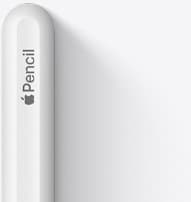
Apple Pencil (2nd generation)
amazon.comStill a strong stylus on compatible iPads. Good pressure control, but compatibility is the main trap.
Pro: Pressure support without Pro pricing
Con: Not compatible with newest Pro-only iPads
Only for iPads that support 2nd generation pairing.
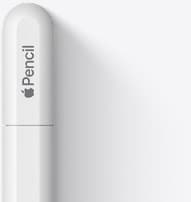
Apple Pencil (USB-C)
amazon.comA practical low-cost Apple stylus with broad compatibility, but limited for advanced art control.
Pro: Lowest official Apple Pencil cost
Con: No pressure sensitivity for brush work
Compatible with many recent iPads. No pressure support.

Apple Pencil Pro
amazon.comThe best Apple stylus for serious digital art workflows. Expensive, but the control upgrades are real.
Pro: Best brush-control and hover workflow
Con: Highest price in the lineup
Works only with newer iPad models. Check compatibility.
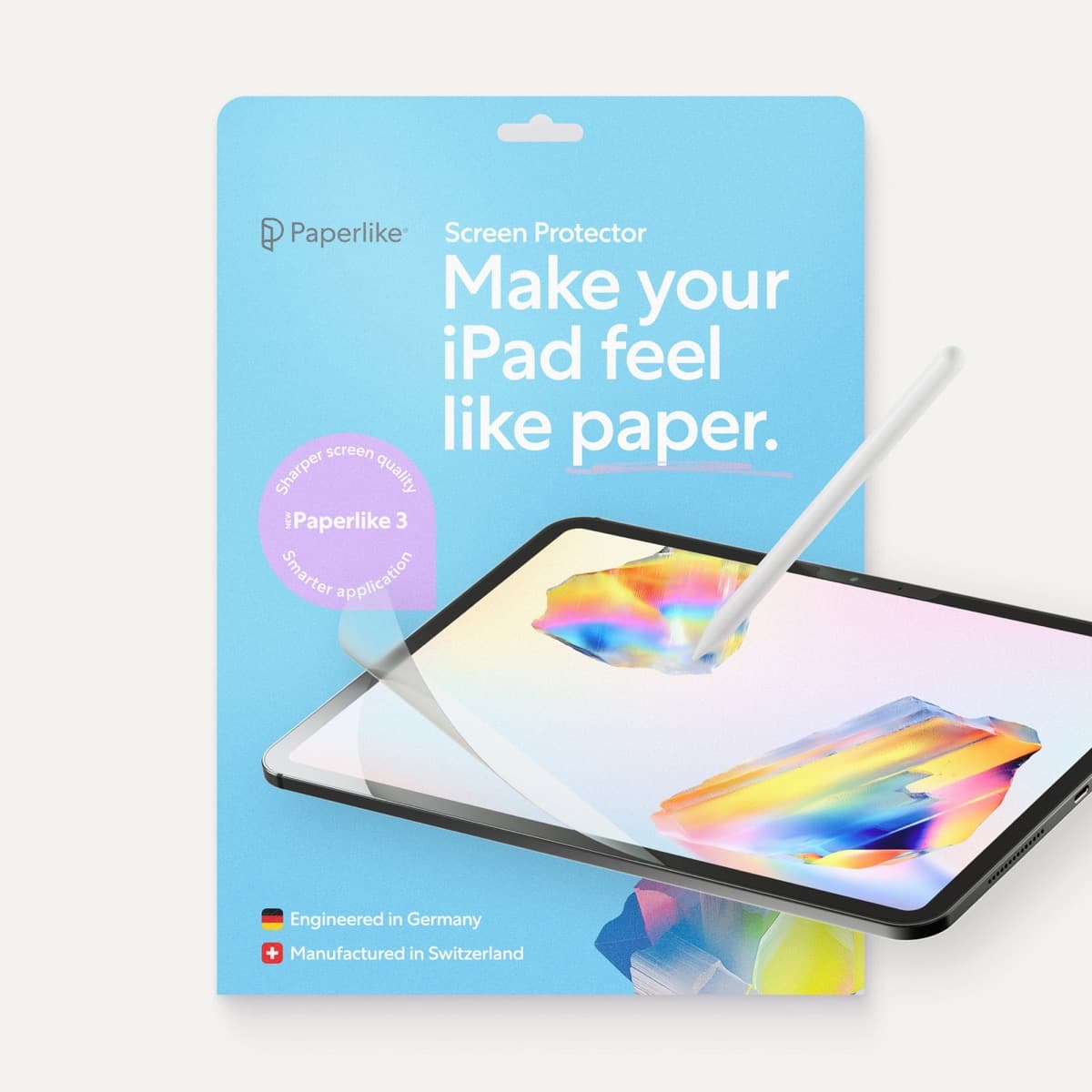
Paperlike 3 (11-inch, 2-pack)
amazon.comA strong surface-feel upgrade for drawing control. Clarity tradeoff is real and should be expected.
Pro: Adds controlled paper-feel friction
Con: Slightly reduces perceived display sharpness
11-inch fit only. Confirm generation before checkout.
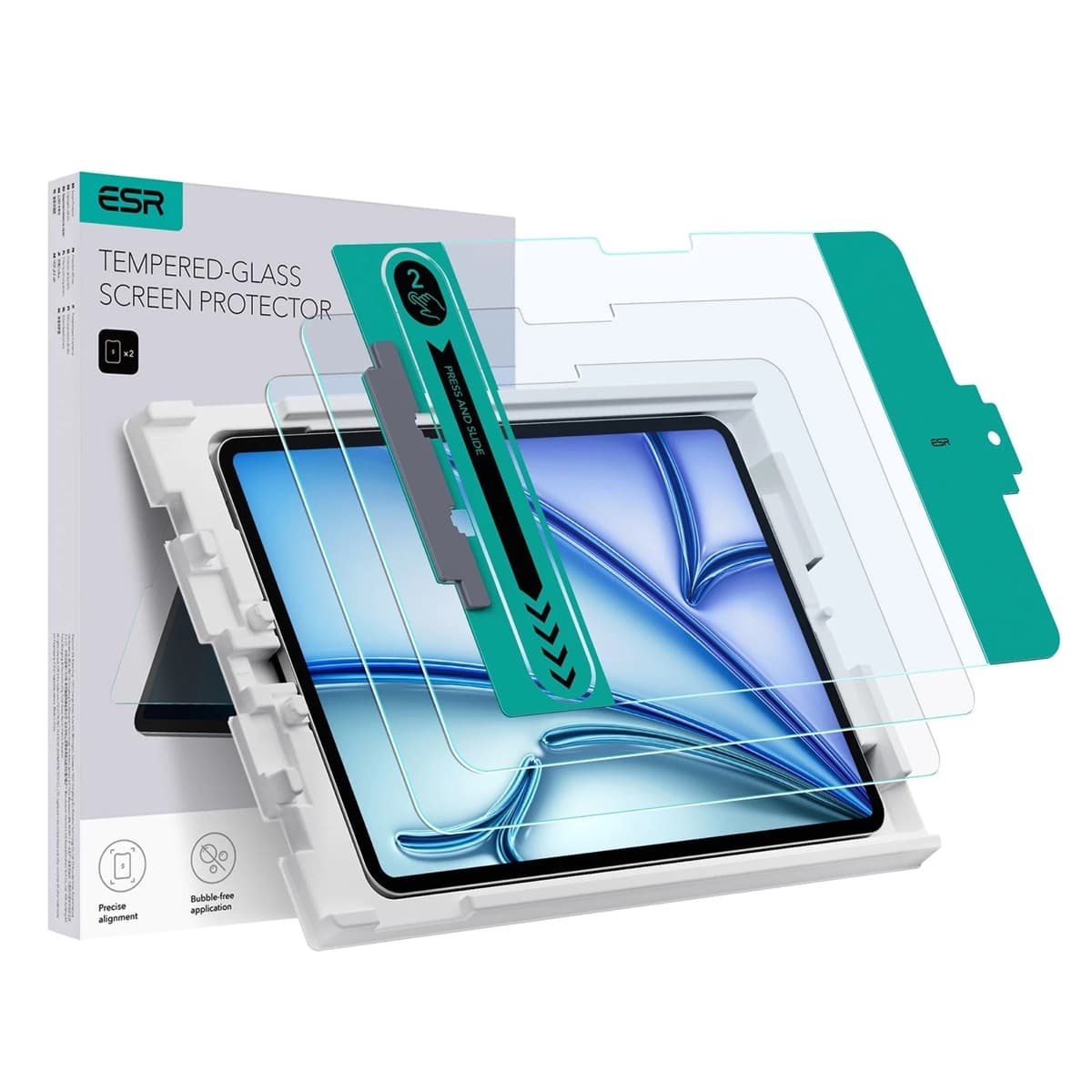
ESR Armorite Tempered Glass (11-inch)
amazon.comHigh-clarity protector with strong value. Great for visibility, less ideal for friction-seeking artists.
Pro: Very clear image with strong scratch resistance
Con: Minimal drawing friction compared with matte films
11-inch fit only. Verify exact iPad generation.
Related buying picks
More in this collectionBuyer guide
Apple Pencil for watercolor painting: which stylus to choose
Choose an Apple Pencil with pressure sensitivity for digital watercolor, and avoid flat styluses that cannot modulate pigment wash.
Buyer guide
Best Apple Pencil for lettering and calligraphy
Choose between Apple Pencil Pro, Apple Pencil 2, and Apple Pencil USB-C based on pressure sensitivity, barrel roll, and iPad compatibility.
Buyer guide
Choosing an Apple Pencil for photo retouching on iPad
Buy the Apple Pencil Pro or 2nd generation for pressure sensitivity, and skip the USB-C model for detailed photo editing.
Buyer guide
Best Apple Pencil for digital planning: How to choose
Choose the right Apple Pencil for digital planning based on your iPad model, handwriting habits, and shortcut preferences.